

Quick Answer
To connect a VoIP phone to a router, plug an Ethernet cable into the phone network port. Connect the other end to your router or network switch. Power the phone with Power over Ethernet or the approved power adapter. Then add the VoIP account details or use the provider activation code.
How To Connect VoIP Phone To Router
The best way to set up a VoIP phone is to use a stable wired connection, correct power, and the right VoIP settings. This gives every call a clear route. It also helps reduce broken audio, failed sign in, and dropped calls.
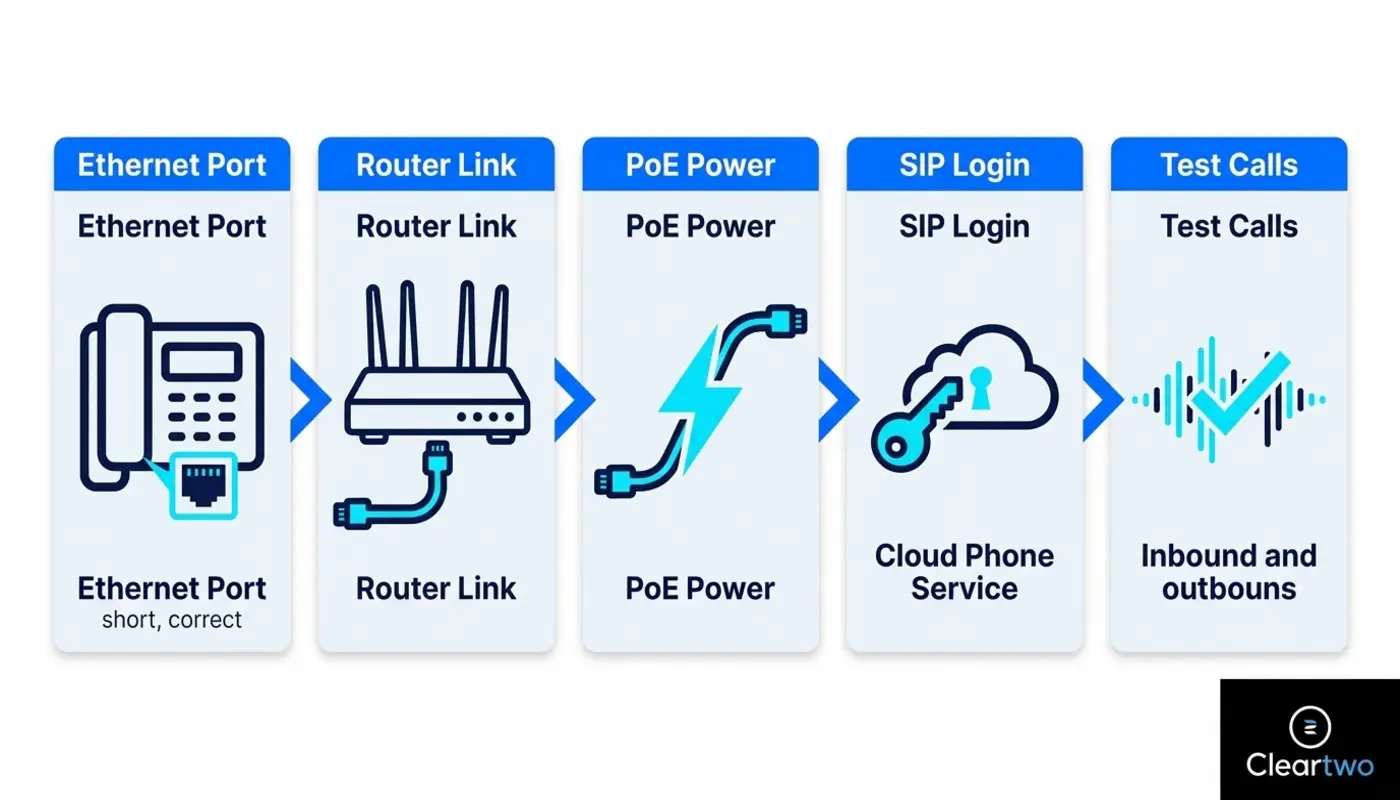
A VoIP phone uses the internet to carry voice. Your words are turned into data and sent across the network. That is why the router matters. It is the main doorway between your office and the outside world.
If your business is moving away from analogue lines, the setup matters even more. The UK PSTN switch off means older landline services are being replaced by digital calling. It is a good time to review your full business telephony UK setup. You can explore wider communication support through Cleartwo if you want a managed route.
Cleartwo helps UK businesses plan VoIP in a clear and careful way. Support can include managed setup, UK based help, Microsoft Teams voice integration, enterprise level features at SME pricing, and a 99.99% uptime SLA. The aim is simple. Every customer call should feel calm, clear, and easy to trust.
Why The Router Connection Matters For VoIP
Your router shapes the quality of your VoIP calls. If the router is overloaded, poorly set up, or unstable, calls can suffer. You may hear delay, echo, crackling, silence, or audio that only works in one direction.
VoIP is different from email or file sharing. Voice must arrive quickly and in the right order. Even a small delay can make a conversation feel awkward. For a business, that can affect trust.
A strong setup is not just about plugging in an Ethernet IP phone. It includes suitable broadband, a business VoIP router, correct SIP registration, Quality of Service, and safe firewall rules. SIP is the sign in method that lets your phone connect to your VoIP service. Quality of Service, often called QoS, gives voice traffic priority when the network is busy.
If you are planning a larger move, Cleartwo's VoIP phone system services can help you plan the full picture before anything goes live.
What You Need Before You Start
Before you connect the phone, gather the right items and account details. This saves time. It also avoids the common issue where the phone turns on but cannot make calls.
You will need a VoIP desk phone or cordless base station. You will also need an Ethernet cable and a way to power the phone. Some phones use Power over Ethernet. This means the network cable carries both data and power. If your switch does not support this, you need the correct power adapter.
You may also need your VoIP username, extension number, SIP password, provisioning link, voicemail PIN, business number, and emergency location details. If your provider uses automatic provisioning, the phone can download its settings after you enter a code.
UK businesses should also check what still uses old PSTN or ISDN lines. This may include alarms, fax machines, payment terminals, door entry systems, lifts, and older analogue handsets. Do not remove old lines until each service has been checked.
Hardware Phone Or Softphone
A hardware VoIP phone is a physical desk handset. It is often best for reception desks, support teams, clinics, legal offices, and fixed workstations. It gives staff a familiar way to handle calls.
A softphone is an app on a laptop, tablet, or mobile. It uses a headset, microphone access, and an internet connection. It suits remote staff, sales teams, hybrid workers, and people who already use Microsoft Teams for calls.
Many businesses use both. Desk phones create a steady base in the office. Softphones give people more freedom. Together, they help shape a joined up communication experience.
This is where UCaaS can help. UCaaS means unified communications as a service. It brings calling, voicemail, chat, video, call recording, and CRM links into one place.
Step By Step Router Setup
Start by finding the correct port on the phone. It may be labelled LAN, Internet, Network, or SW. Do not use the PC port by mistake. That port is usually there to pass a network connection through to a computer.
Connect The Ethernet Cable
Plug one end of the Ethernet cable into the phone network port. Plug the other end into a spare router port. In many business offices, the better option is to connect the phone to a managed network switch that links back to the router.
A managed switch gives more control over voice traffic. It also helps if you need separate voice and data settings.
Power The VoIP Phone
If your switch supports Power over Ethernet, the phone may start as soon as the cable is connected. If not, use the approved power adapter. Do not assume every Ethernet port can power a phone.
Wait For Network Access
Let the phone start up. It should receive an IP address. This is the phone address on your local network. The screen may show an extension, an activation page, or a message that says it is registering.
Check The Link Lights
Look for link lights on the phone, router, or switch. If the phone has network access but no dial tone, the cable may not be the issue. The problem may be provisioning, SIP registration, firewall settings, or the VoIP account.
Configure The VoIP Account
After the cable and power are in place, the phone needs to know which account it belongs to. These settings give the phone its identity. They tell it where to send calls, which number to show, and which features to use.

Automatic provisioning is often the easiest route. Your provider gives an activation code or link. The phone then downloads the correct settings. This may include the extension, SIP server, time zone, voicemail, caller ID, and feature buttons.
Manual setup takes more care. You may need to enter the SIP server, authentication name, SIP password, outbound proxy, transport type, and codec settings. A codec is the method used to package voice so it can travel over the internet.
Only change these settings with provider guidance. One small error can stop the phone from registering or cause poor sound quality.
Security matters as well. Change factory set admin passwords. Keep phone firmware up to date. Do not expose the phone management page to the public internet. SIP details are sensitive, so treat them like keys to your office.
Set Up Quality Of Service
Quality of Service helps your router give voice calls priority when the network is busy. It cannot create extra broadband speed, but it can stop voice calls being pushed behind large downloads, cloud backups, or video meetings.
Many business routers include a voice or VoIP setting. Your provider may also give port ranges, IP ranges, or DSCP markings. DSCP markings are small labels that help network equipment spot voice traffic.
If possible, apply these settings across the router, firewall, and managed switches. The more joined up the setup is, the more stable the call path becomes.
You can also use a voice VLAN if your network supports it. A VLAN gives calls their own lane on the network. It helps with call quality, safety, and fault finding.
Aim for low delay, low jitter, and very low packet loss. In simple terms, the call should travel quickly, arrive evenly, and lose almost nothing on the way.
Wired Or Wi Fi VoIP Connection
For fixed business phones, wired Ethernet is usually the better choice. It gives a steady connection. It also avoids Wi Fi interference and makes faults easier to find.
Wi Fi can still work well for approved wireless handsets, hot desks, short term offices, and softphones. The key is strong coverage. Weak signal, busy access points, thick walls, and roaming between wireless areas can affect voice quality.
Choose wired Ethernet for reception phones, fixed desks, and support teams. Choose Wi Fi or softphones when people move often or work across different locations. Test Wi Fi during busy hours, not only when the office is quiet.
A good phone setup is like a well planned workspace. Some conversations need a steady desk and a quiet room. Others need freedom to move. The right choice depends on how your people work.
CallSwitch One And Managed Support
CallSwitch One is a strong option for UK businesses that want cloud phone features without managing everything alone. It supports hosted VoIP, call routing, call recording, mobile working, and business grade controls. PBX means the phone system that manages calls across your business. You can learn more from CallSwitch One.
Cleartwo is a CallSwitch One reseller. This gives customers a useful mix of platform features and hands on support. You get cloud phone capability with Cleartwo's managed service, clear pricing, and practical help.
That matters during setup. Some services leave you to connect phones, check router settings, and chase support tickets alone. Cleartwo can help with setup, number porting, Teams voice, SIP trunking, CRM links, training, and ongoing support.
How Cleartwo Supports VoIP Setup
Cleartwo starts by reviewing your current phone system, broadband, router, firewall, cabling, users, and migration risks. This is important if you still use PSTN or ISDN services and need a safe move to digital calling.
During setup, Cleartwo can provision desk phones, configure extensions, create call queues, apply QoS, support Microsoft Teams phone integration, and connect your cloud CRM where needed.
The aim is to make communication feel joined up. Calls, customer data, security, and support should not sit in separate corners. They should work together as part of one clear digital experience.
Cleartwo also supports wider technology needs, including IT support for businesses, IT security for SMEs, web development services, AI driven solutions, AI marketing tools, and ecommerce marketing. Your phones become part of the same customer journey, not a separate tool.
For more setup detail, you can also read Cleartwo's guide on how to connect a VoIP phone, which works well alongside this router focused advice.
Troubleshooting Router Problems
If the phone has no power, check the power adapter, PoE switch, cable, and port. If it has power but no network, make sure the cable is in the correct phone port. Also check that the router or switch is giving the phone an IP address.
If the phone connects but does not register, check the provisioning code, SIP username, SIP password, server address, firewall rules, and VLAN settings. A phone can be online without being allowed to make calls.
If calls are choppy, delayed, or dropping, test with Ethernet instead of Wi Fi. Check for large uploads, cloud backups, streaming, and busy video meetings. Then review QoS and broadband capacity.
If audio only works in one direction, the issue may be linked to firewall, NAT, or media port settings. NAT is the router process that lets devices in your office share one internet connection. SIP ALG is a router feature that tries to inspect VoIP traffic. It can help in some cases and cause problems in others. Change it only with provider guidance.
Test Before Going Live
Testing shows whether the phone works for the business, not just as a device on a cable. It gives you confidence before customers depend on the new setup.
Make internal calls. Test inbound calls. Make outbound calls to UK landlines and mobiles. If your business calls overseas, test international calls too.
Check caller ID, voicemail, hold, transfer, call forwarding, hunt groups, auto attendant, call recording, and CRM logging. Test at busy times as well as quiet times. A phone can sound perfect early in the morning and struggle when the office is full.
Also confirm emergency calling information, number porting status, user training, admin access, mobile failover, and support routes. Every detail matters because every call is a small moment of trust.
Final Thoughts
Connecting a VoIP phone to a router is simple on the surface. The real value comes from doing it with care. A good setup gives voice traffic a clear path, protects call quality, and supports the way your team works.
For a single phone, the steps may be quick. For a business, the wider setup should be planned. Broadband, router settings, security, call routing, Teams, CRM, number porting, and support all shape the final experience.
When each part is aligned, the phone system feels effortless. Customers hear clear voices. Staff handle calls with confidence. The technology fades into the background, where good design often belongs.
Frequently Asked Questions
Can I Connect A VoIP Phone Directly To My Router?
Yes, you can connect a VoIP phone directly to a router with an Ethernet cable. Plug the cable into the phone network port and a spare router port. The phone also needs power and correct VoIP account settings before it can make or receive calls.
Will The PSTN Switch Off Affect My Business VoIP Setup?
Yes, it can affect your setup if your business still uses analogue or ISDN lines. You should check phones, alarms, payment devices, fax equipment, lifts, and door entry systems before removing old services.
Does VoIP Save UK Businesses Money?
VoIP can reduce costs by cutting line rental, maintenance, and older PBX costs. Savings depend on users, call volumes, hardware, support, and migration needs. Many UK SMEs prefer cloud telephony because pricing is easier to plan.
Can I Use Microsoft Teams Instead Of A Desk Phone?
Yes, many businesses use Microsoft Teams phone features with a headset instead of a desk phone. It still needs good broadband, the right licences, correct telephony setup, and a stable network.
Is Call Recording Compliant On VoIP Systems?
Call recording can be compliant, but the system alone is not enough. Your business needs a clear reason for recording, caller and staff notice, access control, retention rules, and data protection processes.