
VoIP For Mobile Phone Setup
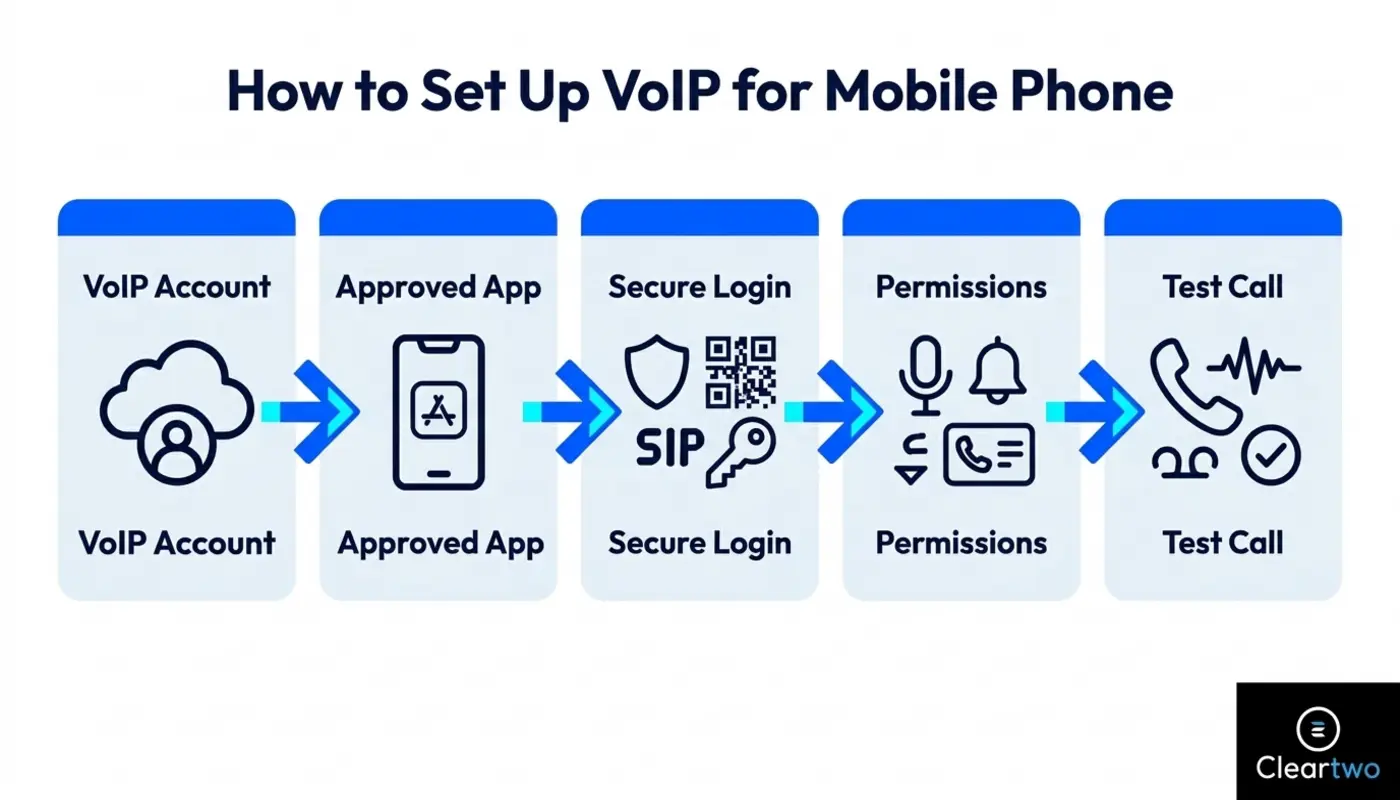
VoIP for Mobile Phone lets you make and receive business calls on an iPhone or Android using your company number, hosted VoIP system and internet connection. Your mobile works like a business desk phone, but it fits in your pocket. You need a business VoIP account, the right app, secure activation details or SIP login details, call permissions and a short call test.
For UK businesses, mobile VoIP is now a smart move. The PSTN switch off is moving the UK away from old analogue phone lines and towards cloud based business telephony. Mobile VoIP helps teams answer calls from the office, home or client sites without giving out personal mobile numbers. If you want a managed setup, Cleartwo can design, configure and support mobile VoIP for your team.
Why Mobile VoIP Helps UK Businesses
Setting up VoIP on a mobile phone gives your business number the freedom to move with your team. Your phone becomes a pocket sized extension of your cloud PBX. A cloud PBX is your business phone system hosted online, instead of being tied to one office.
Staff can answer calls from home, on client sites, between meetings or across different offices. The customer still sees the business number. The business keeps control of call routing, voicemail, queues, call recording and reports. Every call has a clear path, like a well planned customer journey.
What UK Business Users Need Before Setup
Before you download an app, gather the right details. A clean VoIP setup starts with good planning. It saves time and helps prevent missed calls later.
You will usually need a business VoIP account, a user licence, an extension number and a direct dial number if required. You may also need SIP login details or an app activation link. SIP is the technology that lets your app connect to your phone system, so calls know where to go.
You also need reliable Wi Fi or mobile data. VoIP uses the internet, so a weak signal can cause delay, echo or broken sound. A good headset also helps, especially for sales teams and support teams.
- Business VoIP account
- Approved mobile app
- SIP login details or secure activation link
- Reliable Wi Fi or mobile data
- Microphone and notification access
- Correct caller ID settings
- Call recording policy where needed
Choosing The Right VoIP App For Mobile Phone
The right app depends on how your team works. Some users only need a simple mobile softphone app. A softphone app turns your mobile into a business phone. Other teams need calling, messaging, meetings and presence in one place.
If your business uses Microsoft 365, Microsoft Teams phone integration may be useful. Teams can support calls on mobile devices, but external calling needs the right setup. This may include Teams Phone, Direct Routing or another supported service. In simple terms, it connects Teams to the wider phone network.
Look for useful features, not just a neat screen. Push notifications, stable background calling, call transfer, hold, Bluetooth support, call recording, CRM integration and business caller ID all matter. If your sales team uses cloud CRM or custom CRM systems, check if calls can log automatically.
Mobile VoIP can also sit alongside business automation, digital marketing solutions, e commerce marketing, web development services and AI driven solutions. Each customer call becomes part of a more joined up experience.
How To Set Up VoIP On An iPhone
On an iPhone, first confirm the correct app with your IT team or VoIP provider. Do not download a random softphone app. The app must match your hosted PBX, SIP trunking setup or phone platform. SIP trunking connects your phone system to the public phone network through the internet.
Open the App Store and check the publisher name. Then install the approved app. When you open it, you may sign in with business details, scan a QR code, follow an activation link or enter SIP account details by hand.
When iOS asks for permissions, allow microphone access and notifications. Contacts access is useful if your business wants caller names to show clearly. Without notifications, incoming calls may not ring when the app is closed.
Next, check caller ID. Make sure outbound calls show the approved business number, not your personal mobile number. Test speaker mode, handset mode, Bluetooth and headset sound before speaking with customers.
How To Set Up VoIP On An Android Mobile Phone
Android setup follows the same route, but menu names can change by phone brand and Android version. Install the approved VoIP app from the official app store. Then sign in or enter the SIP details supplied by your administrator.
Allow microphone, phone, contacts and notification permissions where needed. If calls do not ring, check app permissions first. Android battery settings can pause apps in the background, so the VoIP app may need permission to run while the screen is locked.
Test the app on business Wi Fi, home Wi Fi and mobile data. If your team uses VPNs, guest networks or public Wi Fi, test those too. Some networks block voice traffic or make calls sound clipped.
Avoid relying on older native SIP settings built into some Android phones. Modern business VoIP works better through a supported app with managed setup, security updates and proper support. You are not just adding an app. You are creating a dependable doorway for customers to reach your team.

Entering SIP Credentials And Account Settings
SIP credentials are the login details that connect your mobile app to your business phone system. They often include a SIP username, password, server or domain, extension number, port and sometimes an outbound proxy.
Enter these details exactly as supplied. One wrong character can stop registration. If the app says the account is not registered, check the username, password, domain and transport setting before changing anything else.
Never share SIP passwords in screenshots, group chats or unsecured messages. Treat them like business system passwords. For larger teams, QR code activation or admin controlled setup is safer and more consistent.
If you are unsure how all the pieces fit together, our related guide on setting up VoIP for remote teams explains how mobile users, office staff and remote workers can share one joined up phone system.
Testing Your Mobile VoIP Setup Before Business Calls
Testing is the point where the system becomes real. Make one outbound call to a UK mobile. Then ask that person to call your business number back.
Check that the right caller ID appears. Test hold, transfer, voicemail, call waiting, call queues, hunt groups and call recording if these features are enabled. Play back a recorded test call if your policy allows it.
Listen for echo, delay, crackling, one way speech and dropped words. Test with and without Bluetooth. Then move between Wi Fi and mobile data to see how the app behaves.
If you use CRM integration, test click to dial, automatic call logging, call notes and contact matching. These small details save time. They also help teams create a calmer and more thoughtful customer experience.
Troubleshooting Common Mobile VoIP Problems
If the app does not ring, check notifications, background activity, do not disturb mode, mobile data access and call routing rules. Many missed calls are caused by phone settings rather than the VoIP platform.
If calls connect but there is no sound, check microphone permissions, mute settings and Bluetooth routing. Try a different network to rule out Wi Fi limits. If the issue only happens in one place, the network is likely the weak point.
If SIP registration fails, recheck every account detail. Passwords are often copied with an extra space. Also confirm that the user licence is active and enabled for mobile use.
If call quality is poor, test another connection and move closer to the router. Heavy downloads, weak mobile signal and busy guest networks can all affect VoIP call quality. Cleartwo can help you run practical VoIP call quality checks and find the cause with confidence.
How Cleartwo Supports Mobile VoIP Setup Across UK Teams
Cleartwo helps UK businesses set up mobile VoIP with clear purpose. We plan users, numbers, extensions, devices, locations, call flows and older systems before rollout. This helps the finished setup feel smooth, not patched together.
As a fully managed UK VoIP specialist, Cleartwo provides managed setup, UK support, Teams voice integration, enterprise features at SME pricing and a 99.99% uptime SLA. An SLA is a service promise that sets expected uptime and support standards.
We configure hosted VoIP, cloud PBX features, SIP trunking, call recording policies, CRM integration, queues, hunt groups and voicemail. We also help businesses prepare for the PSTN switch off by reviewing analogue phones, alarms, lifts, payment terminals and other connected systems.
Most of all, Cleartwo removes the guesswork. Your team gets a setup that has been planned, tested and shaped around the way people work. Users feel ready and supported from the first call.
Getting The Most From VoIP Once Everything Is Live
Once your mobile VoIP app is working, shape it around your working day. Set business hours, presence status and call forwarding rules. This helps customers reach the right person at the right time.
Use queues and overflow routing if several people answer shared calls. This helps growing teams avoid missed enquiries. It also gives managers better visibility of call volumes and response times.
Connect VoIP to your CRM where possible. Call notes, click to dial and automatic logging remove small bits of friction from every conversation. Over a week, those small gains add up.
Use call recording with care. UK businesses should think about consent, access control, storage time and deletion. Recording is useful for training and compliance, but an app alone does not make a business compliant.
Train users too. A short guide on how to answer, transfer, park, record and change status can save hours of confusion later. Good communication systems should feel simple. They should support the rhythm of the team without getting in the way.
Final Thoughts
VoIP on a mobile phone gives UK businesses a more flexible way to answer calls, support customers and keep teams connected. The best results come from the right app, strong permissions, secure SIP settings, good testing and clear user training.
With the PSTN switch off moving closer, mobile VoIP is no longer just a useful extra. It is part of a modern phone setup. When it is planned with care, every call feels joined up, professional and easy to manage.
Frequently Asked Questions
Can I Use My Existing Business Number On My Mobile Phone?
Yes, in most cases you can use your existing business number on a mobile phone through a VoIP app or mobile extension. Your provider may need to port the number, assign it to a user and configure caller ID so outbound calls display the approved company number.
Does Mobile VoIP Work Without Wi Fi?
Yes, mobile VoIP can work over 4G or 5G if the app can use mobile data and the signal is strong enough. Call quality depends on coverage, network traffic and data reliability. UK businesses should test mobile data before relying on it for important calls.
How Long Does It Take To Set Up VoIP On A Mobile Phone?
A single user can often be set up in under an hour if the account, app and SIP details are ready. A business rollout takes longer because users, numbers, routing, permissions, call recording, CRM integration and testing all need to be set up properly.
Can I Use VoIP With Microsoft Teams On My Mobile?
Yes, Microsoft Teams can support business calling on mobile devices when the correct Teams Phone setup is in place. Some businesses call inside Teams. Others connect Teams to a wider business phone platform for routing, numbers, reporting and support.
Why Is My VoIP App Not Receiving Calls?
The most common causes are blocked notifications, battery restrictions, missing permissions, poor data connection, do not disturb mode or incorrect call routing. Also check that the SIP account is registered and that the user is included in the correct queue or ring group.