
VoIP Phone Basics
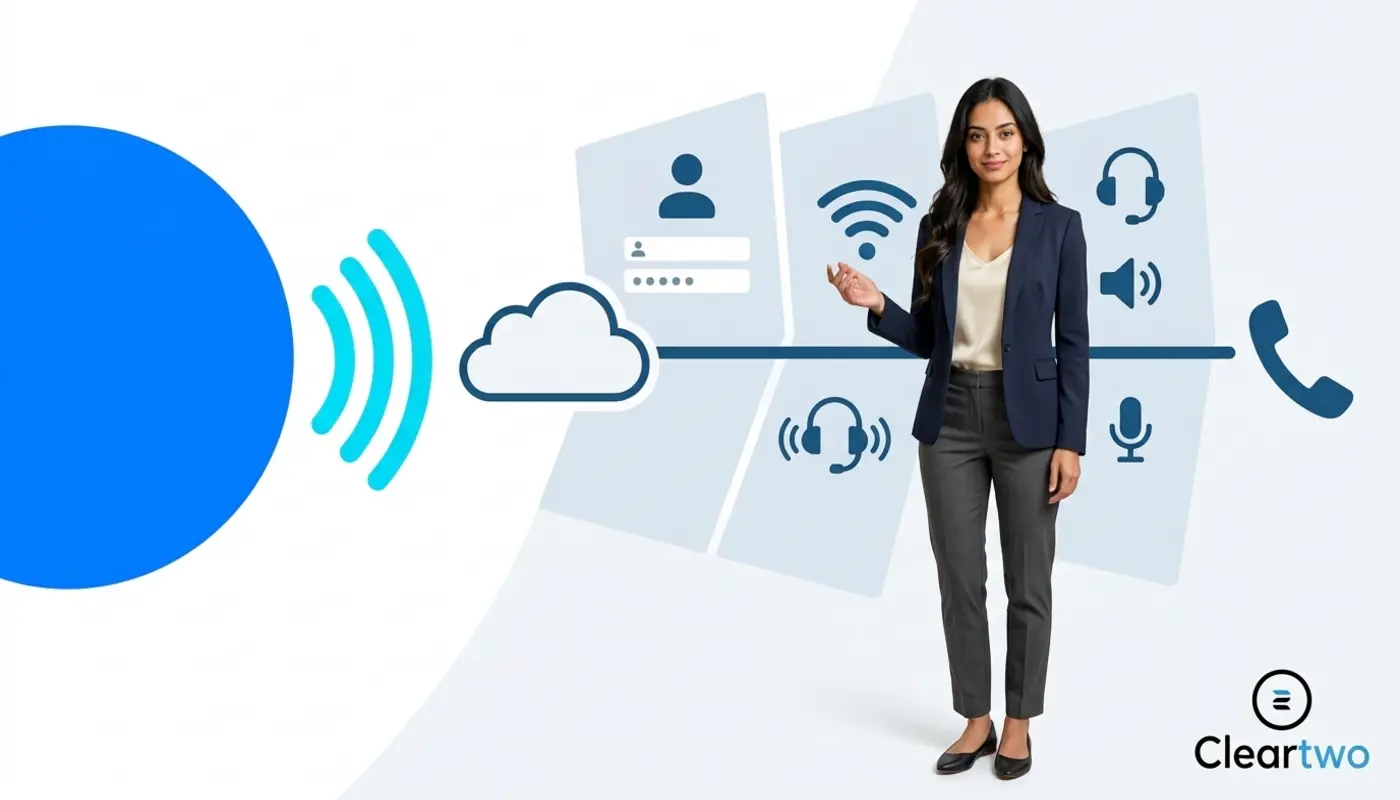
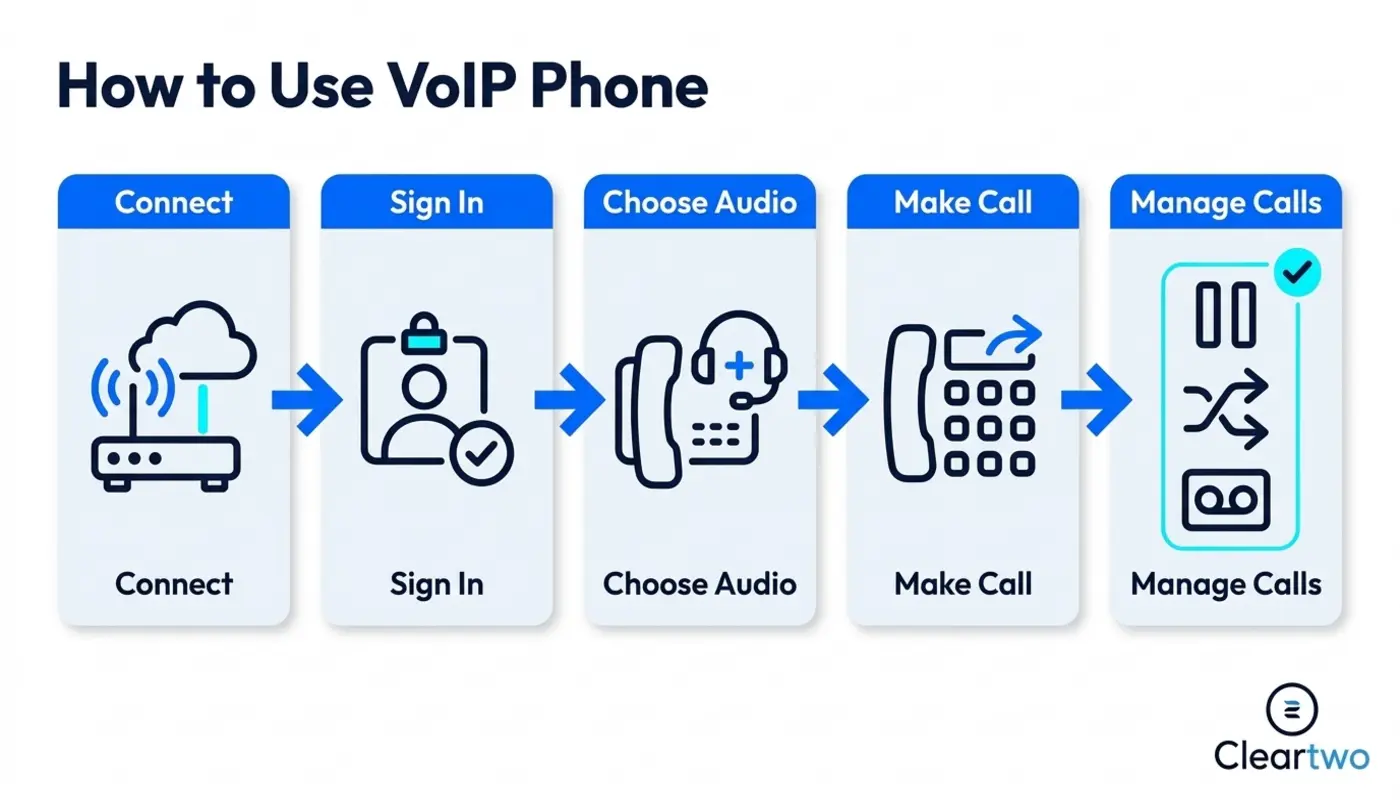
To use a VoIP phone, connect it to the internet, sign in with your business account, choose your audio device, and make a call through a desk handset, softphone, mobile app, or Microsoft Teams phone setup. That is the simple answer. Once the setup is done properly, using VoIP feels much like using a normal office phone.
If you searched for How to Use VoIP Phone, here is the straight answer. You need a stable connection, a working VoIP account, and the right device. Then you dial, answer, hold, transfer, and check voicemail as needed. No telecoms degree required. Thankfully.
For UK businesses, VoIP is not a fancy extra anymore. It is replacing old landlines. Cleartwo helps businesses move across without the usual chaos, confusion, and someone shouting that the phones are broken before lunch.
Cleartwo is a fully managed UK VoIP specialist. It supports managed setup, UK based help, Teams voice integration, enterprise level features at SME pricing, and a 99.99% uptime SLA. In plain English, your team can use the phone system from day one.
What A VoIP Phone Does
A VoIP phone sends your voice over the internet instead of an old copper phone line. That is it. No magic. No nonsense. Your voice is turned into data and sent through your broadband connection.
This matters because the UK PSTN and ISDN switch off is coming by January 2027. If your business still relies on legacy lines, stop pretending it will all sort itself out. The old network is being retired. Hosted VoIP, cloud PBX, SIP trunking, and UCaaS are the practical replacements.
What You Need Before Making A VoIP Call
Before making a VoIP call, you need four things. You need stable internet, a configured VoIP account, a suitable device, and working audio. Miss one of these and the call will fail. Shocking, I know.
Your device could be an IP desk phone, a laptop softphone, a mobile app, or Microsoft Teams with phone integration. Once these parts are ready, using VoIP feels familiar. You dial, answer, hold, transfer, and check voicemail much like you did with a traditional phone.
The difference is that VoIP gives you more control. You get better reporting, easier remote working, call recording, call routing, and CRM links. Obviously, those features only help if your team knows how to use them.
Getting Started With Your First VoIP Call
To make your first VoIP call, pick up the handset or open your calling app. Dial the number and press call. For UK numbers, use the normal format. Use 0161 numbers for local calls, 020 numbers for London, or 07 numbers for mobiles.
If you use a desk IP phone, check the screen first. It should show your name, extension, or user account. If it says offline, unregistered, or nothing useful, it is not ready. Check the network cable, power, and internet before blaming the phone like it has personally offended you.
To receive a call, press answer, lift the handset, or tap the green button in your softphone app. Use speakerphone for quick chats. Do not run a private client call on loudspeaker in the middle of the office. Come on.
Using A Desk VoIP Handset
A desk VoIP handset works much like a normal office phone. The difference is that it has better features. Your team will ignore those features unless someone explains them. That is how office technology works.
The main controls are dial, answer, redial, hold, transfer, conference, voicemail, and call history. Use redial when you need to call the last number again. Use call history to check missed, received, and outbound calls. This is basic, but missed calls cost money, so yes, it matters.
Most business telephony UK setups also support speed dials, shared contacts, presence, and busy lamp fields. Busy lamp fields show if another user is free or already on a call. It sounds dramatic. It is just a small light telling you not to interrupt Dave from accounts.
Using VoIP On A Desktop Or Laptop
A desktop softphone lets you make and receive calls from your computer. You log in, choose your headset, open the dial pad, and call like you would from a desk phone.
Use a proper headset with a noise reducing microphone. Select the right speaker and microphone in the app settings. Then test one internal call before calling a real customer. Testing matters. Guesswork is not an IT plan.
Softphones are useful for hybrid teams, sales staff, support teams, and anyone who moves between locations. They also work well with CRM integration, call recording, cloud CRM, and business automation tools. Calls can be logged against contacts without extra admin.
If you use the laptop microphone from across the room, everyone will hear your keyboard, your breathing, and possibly your lunch. Use a headset. It is not a big ask.
Using VoIP On A Mobile Device
Mobile VoIP lets remote and field based workers make business calls from a mobile app. It works over 4G, 5G, or Wi Fi. The customer sees your business number, not someone's personal mobile. That matters. Giving every customer your private number is not professional. It is messy.
Install the approved mobile VoIP app. Sign in with your user details. Allow microphone access and notifications. Keep mobile data enabled when travelling. Use Wi Fi where coverage is strong.
Poor signal creates choppy audio, dropped calls, and the classic can you hear me now routine. Nobody enjoys that little performance.

Mobile VoIP calling is simple when the basics are right. Keep the app updated. Use headphones where possible. Set your availability status properly. If you are unavailable, say so in the app. Do not let calls ring forever like a haunted switchboard.
Using Hold, Transfer, And Conference Calls
Hold, transfer, and conference calling are core VoIP phone features. Learn them early. Nothing kills confidence faster than cutting off a customer while trying to transfer them. Smooth. Really smooth.
Use hold when you need to check information. Tell the caller first. Press hold. Find the answer. Then resume the call. Do not leave people sitting in silence wondering if your business has vanished.
Use attended transfer when you want to speak to the next person before passing the caller across. Use blind transfer when you send the call straight through. Attended transfer is better for client service. Blind transfer is fine for simple internal routing.
For conference calls, press conference, dial the next person, then join the calls together. Most cloud VoIP phone system UK setups support small group calls from desk phones, softphones, or Teams. Avoid inviting twelve people when three would do. Meetings are already painful enough.
Voicemail, Call Recording, And Call History
Voicemail, call recording, and call history help UK VoIP users stay organised. They help teams follow up faster and keep better records. Used properly, they stop important calls disappearing into the void.
Set a clear voicemail greeting with your name, company, and expected response time. Check voicemail daily. Use voicemail to email if your system supports it. If customers leave messages and nobody listens, that is not a phone issue. That is a management issue.
Call recording is useful for training, dispute resolution, regulated sectors, and quality checks. UK organisations must think about GDPR, retention rules, access controls, and lawful reasons for recording. Financial firms may also need stronger recording policies under MiFID II.
Call history helps teams track missed calls, return calls, and measure service levels. If your sales or support team is not reviewing missed calls, they are leaving opportunities on the table. Nice of them to donate revenue elsewhere, but probably not ideal.
Integrating VoIP With Teams, CRM, And Business Tools
If your team already uses Teams or a CRM every day, your phone system should connect with those tools. It should not sit in a corner acting special. VoIP becomes far more useful when calls, contacts, notes, recordings, and follow ups sit in one place.
With Microsoft Teams Phone Direct Routing, businesses can use Teams as the calling screen. They can still keep proper UK numbers, routing, call queues, and recording features behind it. If your staff already live in Teams all day, adding voice there makes sense.
CRM integration gives teams click to dial, screen pops, automatic call logging, notes, and call outcomes. For the practical version, read the CRM phone integration page. It explains how connected systems reduce admin and make sales activity easier to track.
This also links with wider business systems. That includes automation, customer management, IT support, security, websites, and marketing tools. The point is simple. Your phone system should work with the rest of your business. It should not create another place where useful information goes to hide.
Advanced VoIP Features Worth Learning
Advanced VoIP features help growing businesses manage call flow, improve customer service, and support hybrid work. Learn these once the basics are working. Do not build a spaceship before your team can answer the phone.
Call queues hold callers until the right person is free.
Hunt groups ring a set of users in order or all at once.
Auto attendants route callers using menu options.
Mobile twinning lets calls ring on more than one device.
Call analytics show call volume, missed calls, answer times, and team performance.
Presence status shows whether a person is free, busy, away, or offline.
CRM logging saves call activity against the right contact.
These features are useful, but only when the setup is clear. Nobody wants a menu with nine choices, no clear route to a human, and hold music that feels like a punishment.
Analytics and call reporting are especially useful for service teams. They show what is really happening. For managers who prefer guessing, the data may be mildly upsetting.
Choosing The Right Managed VoIP Setup
The platform matters, but the setup matters more. A strong VoIP system should give UK businesses reliable calling, clear routing, mobile access, desk phone support, softphone access, recording options, and Teams style workflows where needed.
Lovely features are useless if nobody configures them properly. That is where many VoIP projects go wrong. A provider gives you a login, waves goodbye, and leaves your team to work it out. Brilliant plan. What could go wrong?
Cleartwo focuses on managed setup, better support, competitive pricing, and practical guidance. Customers get more than a login and a cheerful exit. With the right implementation, businesses can use hosted VoIP, cloud PBX features, call recording, mobile apps, CRM integration, and smarter call routing without turning the project into a full time job.
Troubleshooting Common VoIP Phone Problems
If something is not working, check the obvious things first. Most VoIP phone issues come from internet quality, device settings, network setup, or user error. Yes, user error. Let us not pretend nobody muted their headset and blamed the system.
If calls sound choppy, check your broadband speed, Wi Fi strength, and network load. Latency means delay. Jitter means voice data arrives unevenly. Packet loss means some voice data is missing. In plain English, your call sounds awful because the network is struggling.
Try simple fixes first. Restart the phone or app. Check the cables. Switch from Wi Fi to ethernet. Test another headset. Confirm the app is logged in. If several users have the same issue, the problem is likely at network level. It is not one unlucky phone.
Cleartwo supports UK businesses with remote checks, routing changes, onboarding, training, and ongoing support through managed VoIP phone systems. That means you do not have to become a telecoms engineer just to answer calls.
How Cleartwo Helps Teams Use VoIP Confidently
Cleartwo sets up VoIP properly from the start. That is the part many businesses skip before acting shocked when staff are confused. Phones can be pre configured, users trained, call flows tested, Teams voice enabled, and CRM integrations checked before launch.
For businesses planning migration, Cleartwo also helps with number porting, SIP trunking choices, call queues, voicemail, call recording policies, and PSTN switch off planning. If you are reviewing your current system, this PSTN switch off migration page is a useful next read.
The end result is simple. Your staff know how to answer, transfer, record, and manage calls. Your managers get visibility. Your customers reach the right people. Shocking concept, a phone system that actually helps people communicate.
Frequently Asked Questions
Do I Need New Phones To Use VoIP?
Not always. Some businesses can use existing devices with adapters. Most UK firms get better results with IP desk phones, softphones, mobile apps, or Microsoft Teams phone integration. Do not guess and start buying random kit. A managed provider can check your current setup and tell you what to keep, replace, or avoid.
How Is Making A VoIP Call Different From A Landline Call?
For the user, it feels almost the same. You dial a number and press call. Behind the scenes, VoIP sends your voice over the internet instead of copper phone lines. That allows extra features such as call recording, CRM logging, mobile apps, call queues, and easier remote working.
Can My Team Use VoIP From Home Without Poor Call Quality?
Yes, if the home internet connection is stable and the device is set up properly. A wired connection is best. Strong Wi Fi can also work. Use a good headset. Avoid overloaded broadband. Make sure the softphone app has the right microphone and speaker selected. Basic checks make a big difference.
Can I Make And Receive Calls Inside Microsoft Teams?
Yes. With Teams phone integration, users can make and receive external calls through the Teams dial pad, contacts, and call history. Extra licensing and routing setup may be needed. This depends on your Microsoft 365 setup and VoIP provider. Set it up properly. Do not guess at it on a Friday afternoon.
Is VoIP Call Recording Legal In The UK?
VoIP call recording can be legal in the UK, but businesses must handle it properly. You need a lawful reason, clear policies, secure storage, access controls, and suitable retention periods. Regulated sectors may need stricter rules for audit and compliance. In short, record calls properly or do not record them at all.